Legal TechMay 20, 2026

What's New in Neos: May 2026

You asked, we built. This release puts NeosAI to work on more of the busywork: auto-assigning SharePoint imports, sharper Chat responses, a new Companion Group in Advanced Search, and customizable email type labels on Contacts, Parties, and Providers. Premium Texting users also get something new: subscribe to a text conversation, choose "Neos and Email," and you'll get an email alert for new texts with a Reply in Neos button.

These updates add up to real time back across your firm.

Don't forget to sign up for the live demo of the top features with our VP of Customer Education, Bryan Billig, during the New in Neos webinar on May 28th at 12 PM ET.

May 2026 New in Neos
New Features
Enhancements
New Features
Recently Released: Smart Document Filing with NeosAI (NeosAI Platinum Users)

Available April 24, 2026

Smart Document Filing brings document upload, classification, case assignment, and post-filing analysis together in the new File Documents tab. NeosAI can auto-assign type, category, and a matching case, and — when enabled — analyze filed documents to generate summaries and perform extractions by document type. Documents can be uploaded directly or synced from SharePoint, and a firm-wide naming format applies automatically.

Knowledge Base Article: Smart Document Filing with NeosAI

Smart Document Filing reduces the manual effort required to get documents into Neos and filed to the right case. NeosAI assistance cuts the hands-on work of classifying type, category, and case — and when Analyze is enabled, removes the separate step of running summaries and extractions after filing. SharePoint-stored documents come in without duplicate uploads, file names stay consistent without manual renaming, and bulk filing speeds up large-batch processing.

Case Managers & Paralegals — uploading documents, syncing from SharePoint, classifying type and category, and filing into cases through the File Documents tab

Legal Assistants — organizing and processing batches of documents in the File Documents tab

Firm Administrators — assigning the Bulk Filing permission, defining the firm’s document naming format, and configuring the SharePoint integration

Required — applies to firms with NeosAI Platinum. A Firm Administrator must also complete the Admin Setup Checklist below before staff can use the workflow.

Before You Start

Admin Setup Checklist

Before staff can use Smart Document Filing, a Firm Administrator should complete the three steps below.

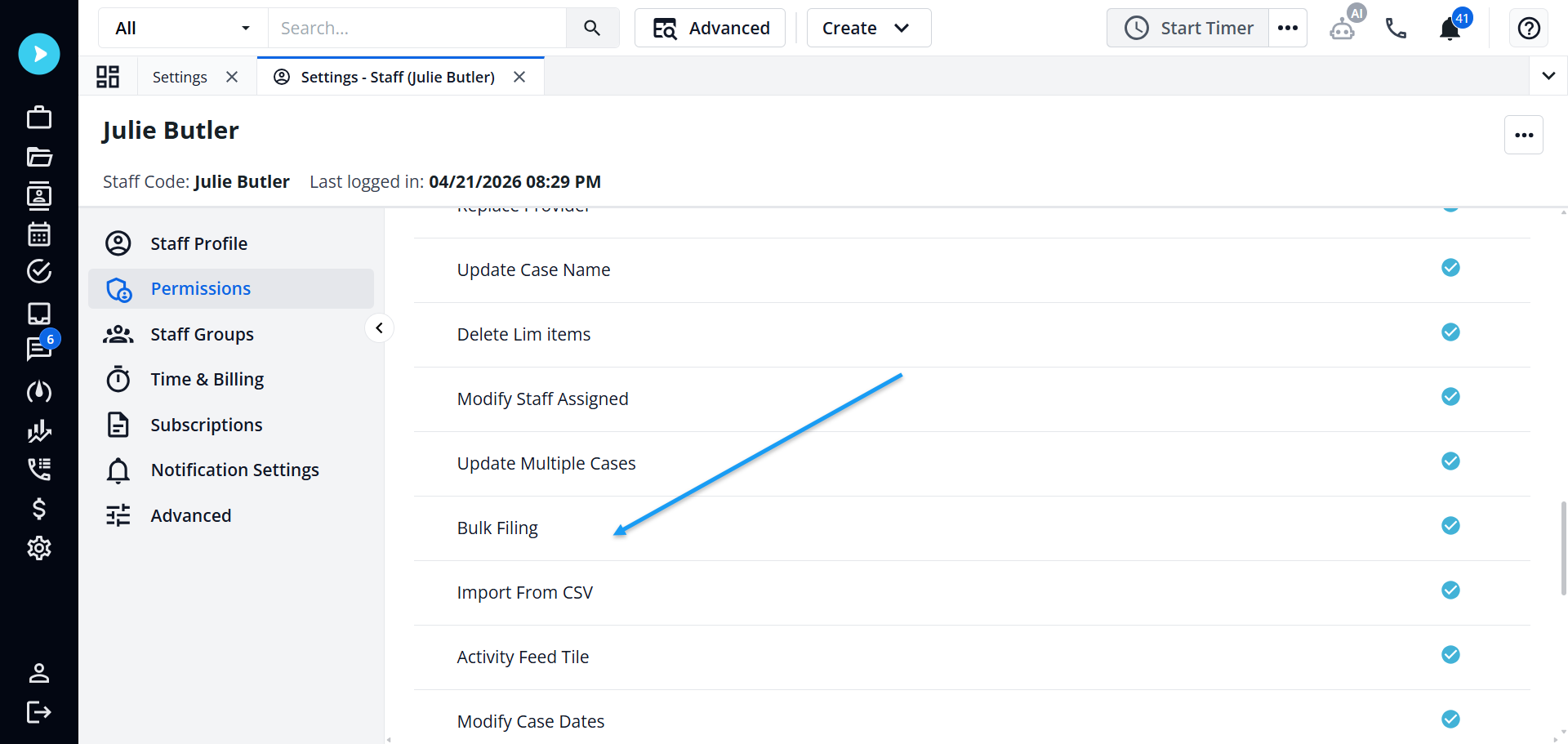
  1. Assign the Bulk Filing permission to staff or permission groups (Settings > Staff Permissions > Special Permissions).
  2. Define your firm's document naming format (Settings > Firm Preferences > Documents tab > Document Renaming).
  3. If your firm plans to use SharePoint Sync: confirm the SharePoint integration is configured in Firm Preferences.


Bulk Filing Permission


Action Required — A Firm Administrator must review and assign the new Bulk Filing permission under Special Permissions for staff or permission groups.

A special permission named Bulk Filing controls access to the File Documents workflow:

  • Set to Inherit by default for staff and permission roles.
  • Enabled for the Administrator Role.
  • Staff with the permission enabled can access:
    • Create > Upload Documents and Unfiled Documents
    • Browse Documents > Upload and Import Unfiled

The Bulk Filing special permission, shown on the Staff Permissions page.The Bulk Filing special permission, shown on the Staff Permissions page.


download.png

The Bulk Filing special permission, shown on the Staff Permissions page.


Automatic Document Renaming — Setting Up the Naming Format


  • Admin access required; the Document Renaming section requires Firm Preferences permissions.
  • Navigate to Settings > Firm Preferences > Documents tab > Document Renaming section.
  • Enable Automatically Rename Documents While Bulk Filing to activate the feature.
  • Build a naming format by typing in the format field or selecting from available field tokens (Case NameCase NumberAlt Case #1Alt Case #2Document TypeDocument CategoryDocument DateUpload DateAuthorOriginal Document Name).
  • As you type, matching field names appear for autocomplete — press Tab or click to insert a token.
  • A live example preview updates in real time as you adjust the format.
  • Click the ? button at any time to see the full list of available fields.
  • Click Reset to Default to restore the format to Original Document Name.
  • If you enter an invalid character (* : ? \ / < > | "), a validation message appears and the Save button is disabled until the character is removed.
  • If you disable automatic naming and later re-enable it, your previous naming format is preserved and re-populated automatically.


download_(1).png


Adding Documents


Upload Documents


To initiate the Upload workflow:

  • Top Navigation Bar > Create > Upload Documents
  • Browse Documents > Upload
  • Browse Documents > Drag & drop onto the grid

Drag & drop files onto the Upload modal or browse your files. Documents will be uploaded in the background. When finished, a notification toast will show in the top right and in the bell. Click View Batch in either the Notifications side pane or the progress box in the bottom right of the screen to open the File Documents tab filtered to the newly uploaded files.

To initiate the Upload workflow, use one of three entry points: Top Navigation Bar > Create > Upload DocumentsBrowse Documents > Upload, or drag & drop files directly onto the Browse Documents grid.


download_(2).png


download_(3).png


download_(4).png


A notification confirms your upload batch is processing. You can continue working while documents upload in the background. When processing completes, a notification appears with a View Batch link to jump directly to your uploaded documents.


download_(5).png


You can also find the completion notification in the Notifications panel with a link to view the batch.


download_(6).png


The File Documents tab displays your uploaded documents.


download_(7).png


SharePoint Sync for File Documents


Action Required — Confirm the SharePoint integration is configured in Firm Preferences before using SharePoint Sync.

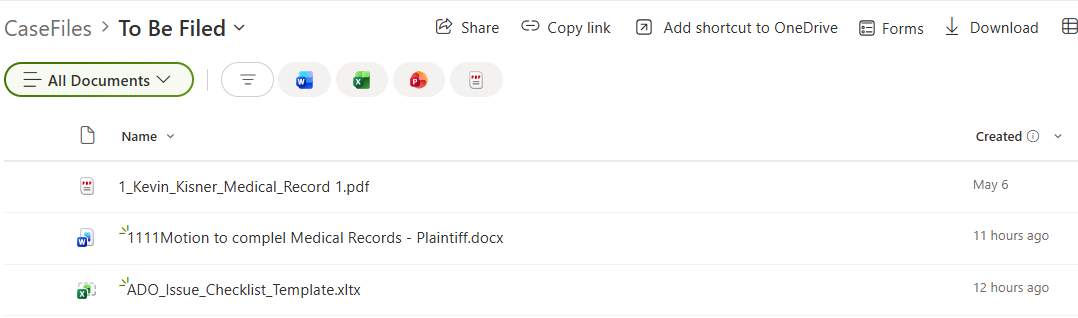
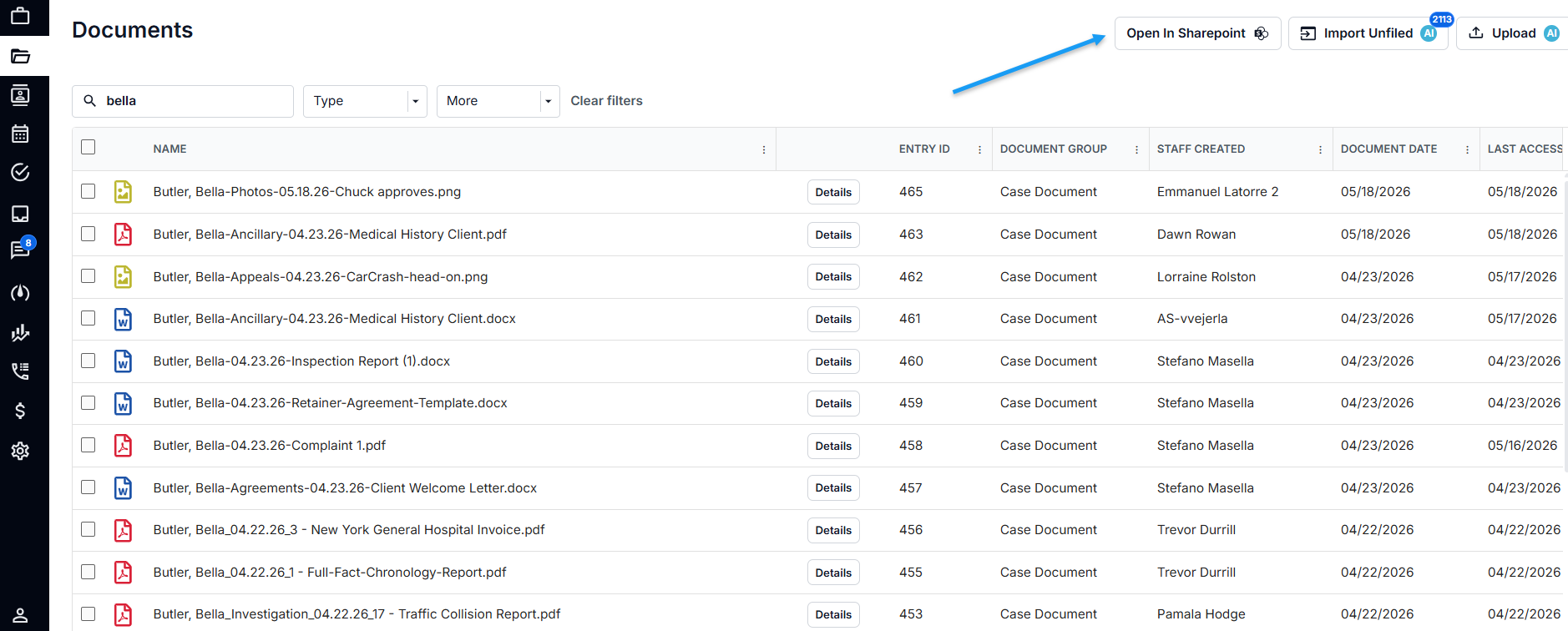
Upload files directly to the To Be Filed directory in your SharePoint CaseFiles drive and sync them into the Neos File Documents tab.

Once configured, access the File Documents tab from Create > Unfiled Documents or Browse Documents > Import Unfiled.

  • Upload documents directly to SharePoint in your CaseFiles drive, To Be Filed directory.
  • Neos will automatically sync with SharePoint every 15 minutes.
  • To sync immediately, click the Sync With SharePoint button at the top of the File Documents tab.
  • Any documents uploaded directly to SharePoint will be added to the list of unfiled documents after the sync is complete.
  • SharePoint character handling: Characters not supported in SharePoint file or folder names (e.g., * : ? \ / < > | ") are automatically stripped from generated file and folder names.
  • Duplicate file name handling: When saving a document to SharePoint and a file with the same name already exists in the target folder, a numeric suffix is appended automatically (e.g., "Document 1", "Document 2"). The original file is not overwritten.

After syncing, the documents appear in the grid alongside other unfiled documents. You can then file them into specific cases and categories using the standard workflow.

1. Go to Browse Documents and click the Open in SharePoint button. Upload documents to the To Be Filed directory in your SharePoint Case Files drive.


download_(8).png


download_(9).png


2. Go back to the File Documents tab and click Sync with SharePoint.


download_(10).png


3. Go to Create > Upload Documents, then upload a document. This will be added to your To Be Filed folder in SharePoint.


download_(11).png


download_(12).png


Filing and Organizing Documents


File Documents Tab


To open the File Documents tab, use either entry point:

  • Top Navigation Bar > Create > Unfiled Documents
  • Browse Documents > Import Unfiled

The File Documents tab lists all unfiled documents currently in Neos.

  • Unassigned document counter — A counter pill in the page header displays the number of documents without an assigned case and updates in real time as documents are assigned. Hover over the info icon for details.
  • Filter row — Filter the queue by AuthorDocument DateDate Created, and Batch Number.
  • Case column — When a document is assigned to a case, the Case column shows both the Case Name and Case Number (e.g., Smith, John (200672)).
  • Case search — The case search modal defaults to All, so you can search by name, case number, intake number, or any other field from a single starting point.
  • Deleted rows — Rows that have been deleted from the grid cannot be selected; their checkboxes are disabled.


The File Documents tab displays all unfiled documents with filter options for Batch Number, Author, Document Date, and Date Created.


download_(13).png


Annotated View: File Documents Tab


download_(14).png


download_(15).png


When finished making changes, click Save & File to save your edits and move all assigned documents into their respective cases. Click Discard to close the tab without saving any changes. The Save & File button is enabled only when there are changes to save, or when a document has been auto-assigned to a case and is ready to be filed.


download_(16).png


Editing Documents


Access the File Documents tab from Create > Unfiled Documents or Browse Documents > Import Unfiled.

You can edit document metadata three ways: in the side paneinline in the grid, or by bulk-editing multiple rows at once.

Side Pane

  • Single-click a row to open the Document Details side pane.
  • Assign a case and edit document metadata including File Name, Type, Category, Date, Tags, and Author.
  • thumbnail preview of the uploaded document appears below the editable fields.

Access the File Documents tab from Create > Unfiled Documents or Browse Documents > Import Unfiled.

You can edit document metadata three ways: in the side paneinline in the grid, or by bulk-editing multiple rows at once.

Side Pane

  • Single-click a row to open the Document Details side pane.
  • Assign a case and edit document metadata including File Name, Type, Category, Date, Tags, and Author.
  • thumbnail preview of the uploaded document appears below the editable fields.


download_(17).png


Inline Editing in the Grid


  • Enter editing mode by double-clicking a row or clicking the pencil icon. Exit editing mode by clicking the checkmark icon to commit your changes, or by clicking outside the row (within the grid).
  • Only one row can be in inline edit mode at a time. Rows in edit mode display a greyed-out, non-clickable checkbox and cannot be selected.
  • If you select additional rows while a row is in edit mode, the row in edit mode retains its edit state and Save & File remains disabled until the edit is committed.


Click the Pencil Icon or Double-Click a row to make changes. Click the Green Checkbox to commit those changes.


download_(18).png


Bulk Actions


  • Select one or more rows to reveal the bulk actions bar, which appears in place of the filter row.
  • The bar includes a Bulk Actions dropdown with two options: Auto-Assign with NeosAI and Delete.
  • The bar also includes six separate inline controls for editing metadata on all selected rows, labeled: Set CaseChange TypeChange CategoryChange DateChange Author, and Change Tags.
  • When a bulk action completes, all rows are deselected and the filter row returns.


download_(21).png


Resizable Columns

  • Resize columns by dragging the column border. Your layout saves automatically and persists the next time you open the tab.


download_(22).png


Automatic Document Renaming — In the File Documents Tab

See also: Before You Start › Automatic Document Renaming — Setting Up the Naming Format for how to configure the firm's naming format. The section below describes how renaming behaves during filing.


When automatic document renaming is enabled, uploaded documents are automatically assigned a proposed file name based on the firm's naming format.

  • An Original File Name column is available in the File Documents grid (not enabled by default). Enable it through Column Options.
  • The Original File Name is read-only — visible in both the grid column and the side pane.
  • When automatic naming is enabled, the File Name column auto-populates with a proposed name based on the firm's format and the document's metadata (case, type, category, date, and author).
  • The proposed file name updates automatically when you change a document's case, type, category, date, or author.
  • You can manually edit the File Name field to override the proposed name. Manual edits are preserved even if metadata changes.
  • When multiple documents are selected and metadata is updated via bulk edit, all selected documents have their proposed file names updated accordingly.
  • When you click Save & File, the document is filed into the case using the proposed (or manually edited) file name.
  • If all fields in the naming format are blank, the file name falls back to the original file name. Empty fields are skipped, and duplicate separators are removed.
  • When automatic naming is disabled, the File Name column defaults to the original file name and can be edited manually.


download_(23).png


NeosAI Auto-Assignment & Analysis


NeosAI Auto-Assignment Suggestions


  • During upload: When uploading unfiled documents, you have the option to use NeosAI to auto-assign the uploaded documents.
  • From the File Documents tab: Select one or more rows and choose the option to use NeosAI to auto-assign the selected documents.

If enabled, the content of each document is sent to NeosAI. NeosAI will determine the best type and category from the firm's library and populate these fields on the document.

NeosAI will also list specific case identifiers found in the document and attempt to find a case in Neos that matches. If one is found, it is proposed on the document. If more than one, or none, is found, no case is proposed.

All NeosAI proposals — type, category, and case — remain pending until the user reviews and files the document:

  • If the proposed case is correct, click Save & File to file the document to that case.
  • If the proposed case is not correct, click the pencil icon on the row to update the case using case search, then click Save & File.
  • Type and category follow the same pattern — edit via inline editing, the side pane, or bulk edit before filing, then click Save & File to commit your changes.

The auto-assignment option remembers your last selection — if you enable it, it will be enabled by default the next time you use it.

After auto-assignment runs, each AI-classified document displays a distinct status icon (group of blue stars) in the File Documents grid. Hover over the icon to see a tooltip indicating the document was classified by NeosAI.


  1. Enable Auto-assign documents with NeosAI during upload to have AI determine the best type and category and suggest a matching case.


download_(24).png


download_(25).png


2. NeosAI determines the best type and category from your firm's library and populates them on the document. It also searches the document for case identifiers; if exactly one matching case is found in Neos, that case is proposed. If multiple or no matches are found, no case is proposed.


download_(26).png


3. Review for accuracy, make any needed updates, then click Save & File to file the document to its case.


download_(27).png


Analyze with NeosAI After Filing

Access the File Documents tab from Create > Unfiled Documents or Browse Documents > Import Unfiled.

An option at the top allows you to analyze documents with NeosAI after filing. The option retains its last selection per user.

When enabled, documents will be analyzed automatically after the documents are filed into the selected case(s):

  • Document Summary will be generated automatically for all documents.
  • Document Extractions will be performed based on the document type selected for each document — for example, when Medical Record document type is selected, the Medical Record Extraction will be automatically performed.


Enable the Analyze with NeosAI after Filing option at the top of the File Documents tab. When enabled, filed documents are automatically analyzed: Document Summaries are generated and Document Extractions are performed based on each document's type.


download_(28).png


NeosAI Chat Updates (Tool Data Sources, Auto-Inclusion & Activity Feed Alignment, Newest-First List Ordering) (NeosAI Platinum Users)

NeosAI Chat is upgraded across three dimensions in Release 26.03. Two case-aware tools — Get Case Entity and Get Case Contact — are now auto-included in every Chat conversation in case view (no manual setup required), the AI invokes them automatically, and AI responses present case data using human-readable labels aligned to the actual activity types in the case feed. A new animated status indicator displays the tool name and entity being retrieved during generation, replacing the previous minimal "Thinking" state. List-tab data included in Chat (Notes, Values, Counsel, Police, Insurance, Party) is now ordered newest first and respects the same record limits as Case Summary (up to 2,000 records per entity).


Knowledge Base Article: Chat with NeosAI

Removes the manual step of adding case data sources before each Chat conversation, so users can ask case-specific questions immediately. Shows users which tool and entity is being retrieved during generation rather than a generic "Thinking" state. Brings included list-tab data into alignment with Case Summary — newest records first, with the same record coverage — so AI Chat answers reflect current case state rather than the oldest available records.

Case Managers & Paralegals — opening NeosAI Chat in a case and asking questions about case entities, contacts, activity feed records, or included list-tab data

Attorneys — using NeosAI Chat for case review

Required — the NeosAI Chat enhancements in this release apply to staff who have the AI Chat special permission.

Tool Data Sources in NeosAI Chat


Two Case-Aware Tools Auto-Included in NeosAI Chat

  • NeosAI Chat now auto-includes two case-aware tools the AI can invoke autonomously during a conversation:
    • Get Case Entity — retrieves a specific case entity (such as a note, value, document, or party) by id.
    • Get Case Contact — retrieves a contact's identity, contact info, and demographic fields. Identity: FirstName, MiddleName, LastName, Prefix, Suffix, IsPerson, AKAFirstName, AKALastName, AKACompanyName. Contact Info: all phones (type + number), email accounts, addresses (type + full address), online accounts (type + value). Demographics: Gender, DateOfBirth, DateOfDeath, Deceased.
  • Both tools are auto-included in every case-view Chat conversation — no manual setup required (see "Auto-Inclusion" below).
  • Tool results are injected into the AI's context behind the scenes — they are not rendered as visible messages or cards in the chat UI.
  • The AI determines autonomously whether to invoke a tool on a given turn; users cannot manually trigger a tool call.

Pre-Seeded Case Context

  • When the auto-included tools are active in a Chat conversation, the AI prompt is automatically pre-seeded with full case data, full intake data, the list of parties (id and name only), and the list of available entity types the AI can query.
  • Pre-seeded data reflects only the currently open case — no cross-case data is included.

Enhanced Status Indicator

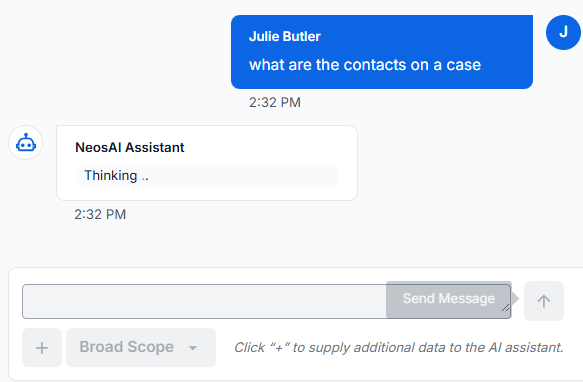
  • While the AI is invoking tool calls, the previous minimal "Thinking" indicator is replaced with an animated indicator that displays the tool name and the specific entity being retrieved (e.g., "Get Case Entity: Notes").
  • The indicator cycles through tool call events as they arrive from the backend, showing a couple at a time, and updates automatically without requiring user interaction.
  • When the AI generates a response without invoking tool calls, the status indicator displays an animated ellipsis — visually distinct from the tool-call cycling state.
enhanced-status-indicators.pngThis is an example of one of the new status indicators.


Conversation Persistence

  • Saving a conversation as a NeosAI Chat note continues to render only the human-readable message thread.

Auto-Inclusion & Activity Feed Alignment


Get Case Entity and Get Case Contact Auto-Included

  • When NeosAI Chat is opened in a case view, Get Case Entity and Get Case Contact are already active in the conversation — no action from the user is required.
  • The "at least one source required" gate is satisfied automatically by the auto-included tools.
  • Manually added sources from the + menu work alongside auto-included tools; the AI uses all active context when generating a response.
  • Existing behavior in Intake view (where these tools were not available) is unchanged.

Reasoning Modes & Context Window

  • The Broad Scope and Focused Insight reasoning modes are unaffected by tool data sources.
  • The 10-message rolling context window applies to auto-included tool records as before.

List Ordering & Higher Record Limits


Newest-First List Ordering

  • Open a case and open NeosAI Chat.
  • Click Add and include one or more list-tab data sources (Notes, Values, Counsel, Police, Insurance, Party).
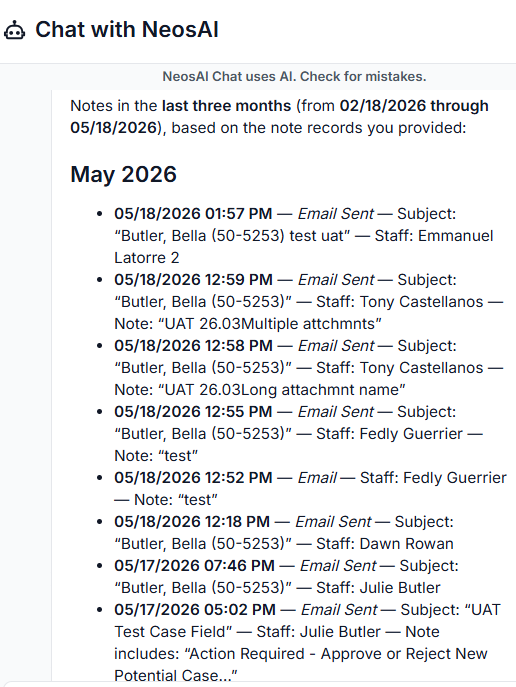
  • When a message is sent, the records included in the AI prompt are ordered newest first.
  • The number of records included per entity now matches Case Summary — up to 2,000 records per entity (e.g., 2,000 notes, 2,000 values).
  • Case Summary for Counsel, Police, Insurance, and Party also follows the newest-first / 2,000-record behavior.
NeosAI_chat_response.pngNeosAI Chat response listing notes ordered newest-firstNeosAI Chat response listing notes ordered newest-firstNeosAI Chat response listing notes from a case in newest-first order across the last three months.
Auto-Assign SharePoint Imports with NeosAI (NeosAI Platinum Users)

Documents imported from SharePoint as unfiled are now auto-assigned with NeosAI in the background, so users no longer need to manually run auto-assign or open the unfiled document grid afterward. The SharePoint import completes immediately and does not wait for auto-assignment to finish; once auto-assign completes, the unfiled document rows update with the AI-suggested values for TypeCategoryCaseDate, and File Name.

Knowledge Base Article: Auto-Assign Documents with NeosAI

Removes a manual step from the SharePoint import flow. Reduces the time between a document arriving in SharePoint and being staged for case filing.


Case Managers & Paralegals — importing documents from SharePoint into the unfiled documents queue

Firm Administrators — managing the NeosAI special permission that gates auto-assign

Required — applies to firms with NeosAI Platinum.

  • When unfiled documents are created in Neos via SharePoint sync, Neos automatically queues auto-assignment in the background. Auto-assign is triggered only for documents created via SharePoint sync — not for documents added through other upload paths.
  • The SharePoint import completes immediately and does not wait for auto-assign to finish.
  • Once auto-assign completes, the unfiled document rows update with the AI-suggested values for TypeCategoryCaseDate, and File Name. NeosAI does not always identify every field — values are populated only when the AI can suggest them with confidence.
  • Auto-assignment does not run when:
    • A document being imported already exists in Neos.
    • The user does not have the NeosAI special permission.
  • If auto-assign encounters an error, the SharePoint import is unaffected and the imported documents remain accessible as unfiled.
opening_sharepoint.png

Opening SharePoint.


To_be_filed_folder_in_sharepoint.png

To Be Filed folder in SharePoint.


Syncing_with_Sharepoint.png

Syncing with SharePoint.

Enhancements
Companion Group in Advanced Search — Column, Filter & Bulk Assignment (Customer Requested)

Advanced Search now supports Companion Groups as a column, a filter, and a bulk action across Cases, Intakes, and Intakes-and-Cases. The Companion Group column shows all groups a record belongs to, comma-separated. A new Add to Companion Group bulk action lets users add many selected records to an existing or new Companion Group from search results, using the existing Select Companion Case Groups modal.

Knowledge Base Article: Advanced Search Filter Options – A-C

Knowledge Base Article: Bulk Add Cases to a Companion Group

Removes the one-record-at-a-time bottleneck when organizing large batches of related cases or intakes into Companion Groups. Surfaces Companion Group membership directly in search results so reporting and triage on related cases no longer require opening individual records.

Case Managers & Paralegals — viewing Companion Group membership in Advanced Search results and adding multiple records to a Companion Group via Bulk Actions

Firm Administrators — setting up Companion Groups across cases and intakes

Firm Administrators — gating bulk Companion Group assignment via existing Companion Case Groups permissions

Companion Group as a Column
  • Run an Advanced Search for CasesIntakes, or Intakes and Cases.
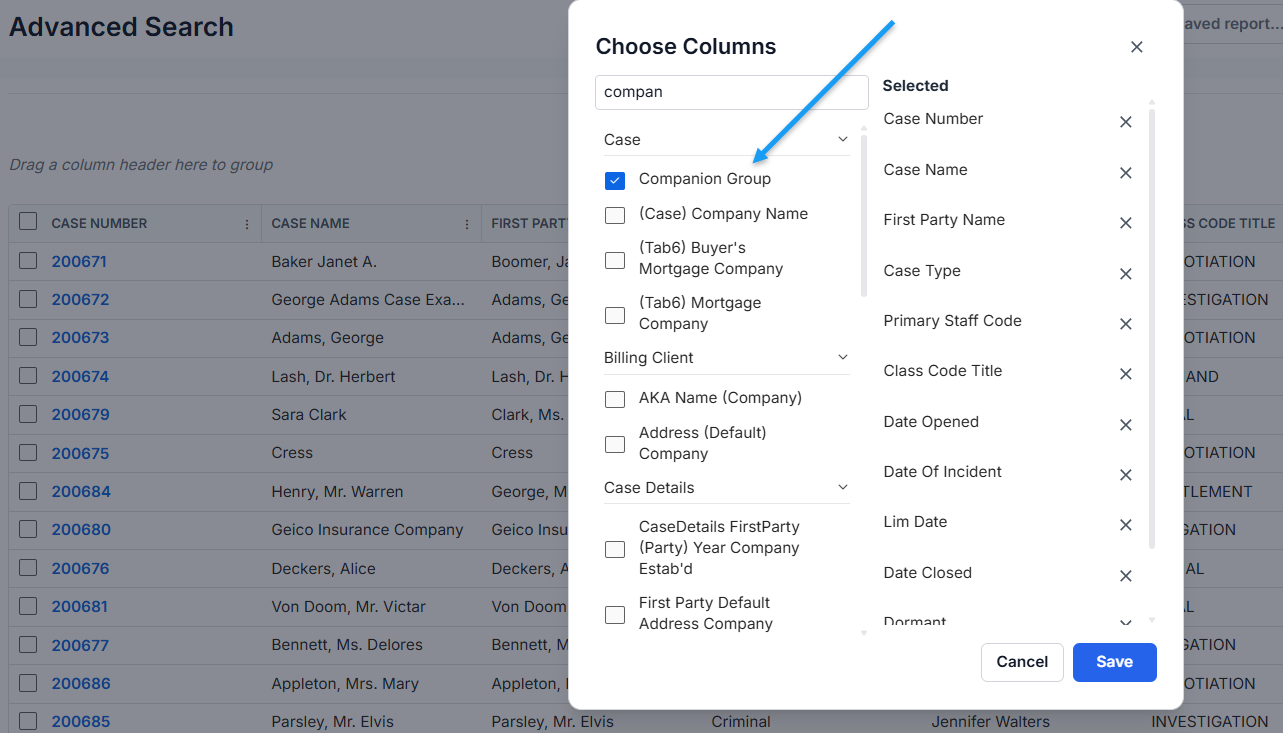
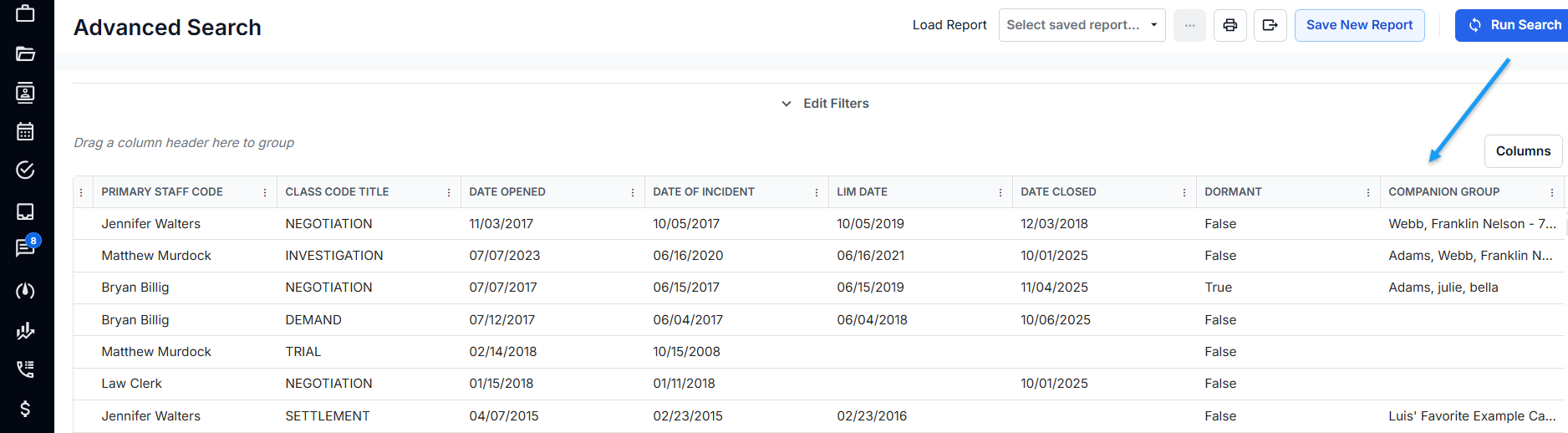
  • Click the Columns button and add Companion Group from the column chooser.
  • The column displays each record's Companion Group names. Records in multiple groups show all group names comma-separated. Records not in any group show the column as blank.
  • The column supports filter, resize, and show/hide. Sorting and group-by are not supported on this column due to its multi-value display.
  • The Companion Group column is included in exports (Excel, CSV, PDF) and saved search subscriptions.


companion_group_as_a_column.png

Advanced Search results with the Companion Group column populated.


Companion Group as a Filter

  • When building an Advanced Search query for Cases, Intakes, or Intakes and Cases, add a filter group and select Companion Group as the field.
  • Operators available: Includes any ofEqualIs BlankIs Not BlankNot EqualExcludes.
  • Search results include records matching the Companion Group criteria.


Companion_Group_as_a_filter_field.png

Companion Group as a filter field in Advanced Search, with the available operators visible.


Bulk Add to Companion Group

Permission required — the Add to Companion Group bulk action only appears when the user has Modify permission for Companion Case Groups.
  • Run an Advanced Search and select multiple records using the row checkboxes (or Select All).
  • Click Bulk Actions and choose Add to Companion Group.
  • The existing Select Companion Case Groups modal opens with the established two-panel layout:
    • Left panel — list of all existing Companion Groups (Group Name and Case Count).
    • Right panel — Group Members for the selected group (Case #, Alt Case #, Date Opened, Case Type, Party Name, Status, Multi Groups).
  • Select an existing group, or type a new group name in the Add input above the groups list to create a new group.
  • Click Save — selected records are added to the chosen group. A confirmation displays "X records added to [Group Name]". Records already in the group are silently skipped (not duplicated).
  • A progress bar displays during the bulk action; bulk assignment completes within 5 seconds for up to 100 records.
  • The Select Companion Case Groups modal layout has also been corrected — the modal title, Groups panel header, and Enter a New Group Name input no longer overlap.


Bulk_Actions_Add_to_Companion_Group.png

Bulk Actions > Add to Companion Group opens the Select Companion Case Groups modal.

Premium Texting Email Notifications (Customer Requested)

For firms with Premium Texting, users who are subscribed to a text-message conversation and select Neos and Email now receive an email notification when a new text message arrives, with a Reply in Neos button that opens the conversation thread. Notification preferences in the staff profile also now use a three-option dropdown — NoneNeos Only, or Neos and Email — letting users choose how they are notified about activity in Neos.

Knowledge Base Article: Notification Settings Tab

Ensures important text replies are not lost in a long notification list and can be acted on from anywhere — incoming texts reach subscribed users by email, on the go, with one click back into the Neos conversation thread.


Case Managers & Paralegals, Attorneys, Legal Assistants — at firms with Premium Texting, receiving the new email notification (with Reply in Neos button) when subscribed to a text-message conversation and using "Neos and Email"

Named Partners, Attorneys, Case Managers & Paralegals, Legal Assistants, Bookkeepers & Accounting, Intake Specialists, Firm Administrators — adjusting personal notification preferences in the Staff Profile (None / Neos Only / Neos and Email)

Notification Settings Dropdown — All Users
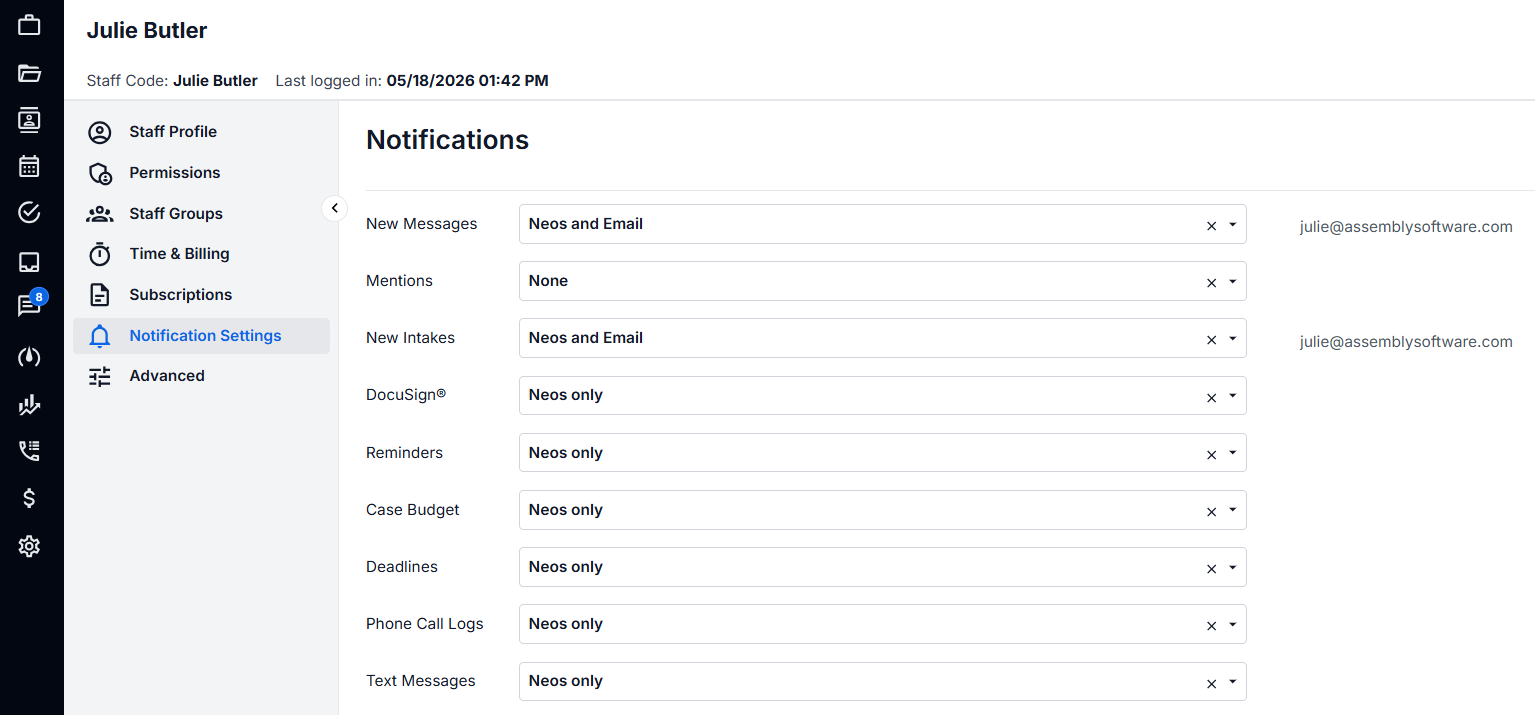
  • Navigate to Staff Profile > Notification Settings.
  • Click the dropdown for any notification option to choose from:
    • None — user receives no Neos or email notifications for that category.
    • Neos Only — user receives only Neos in-app notifications.
    • Neos and Email — user receives both Neos in-app and email notifications.


Updated_Notification_Settings.png

Updated Notification Settings dropdown in the Staff Profile.


Text-Message Email Notification — Premium Texting

Applies only to firms with Premium Texting.

  • A user who is subscribed to a text-message conversation and has set their text message notification preference to Neos and Email receives an email when a new text message arrives.
  • The email subject is "You have received a text message" and contains:
    • The recipient's name
    • The sender's name and timestamp
    • The full text-message conversation
    • Contact name and AKA, phone number and number type
    • Conversation topic
    • All subscribed staff (comma separated)
    • Reply in Neos button
  • Clicking Reply in Neos:
    • If the user is logged into Neos, opens the text-message conversation thread in a browser window.
    • If the user is not logged in, opens Neos and after login routes the user to the text-message conversation thread.
  • Replies sent to the notification email itself are not processed (do-not-reply email).
  • If the firm does not have Premium Texting, users do not receive this email even if they select Neos and Email.
Customizable Email Type Labels on Contacts, Parties, and Providers (Customer Requested)

The Email Type field now supports custom values when adding or editing an email on a contact, the case Party Tab, or the Provider Card — matching how Phone Type already works. Users can type a custom label (up to 32 characters) directly in the Email Type dropdown and save it with the email record. The default options — Personal, Business, and Other — remain available, and custom values are scoped to the underlying contact.

Knowledge Base Article: Adding an Email

Knowledge Base Article: Advanced Search Filter Options – D-H

Eliminates the loss of context that comes from forcing every non-default email into "Other." Brings email type behavior into alignment with the existing phone type behavior, removing the need to remember different rules for similar fields.

Legal Assistants — adding and editing email addresses on contacts, case Parties, and Providers during data entry

Case Managers & Paralegals — referencing email type values on contacts, case Parties, and Providers when working cases

Adding a Custom Email Type on a Contact
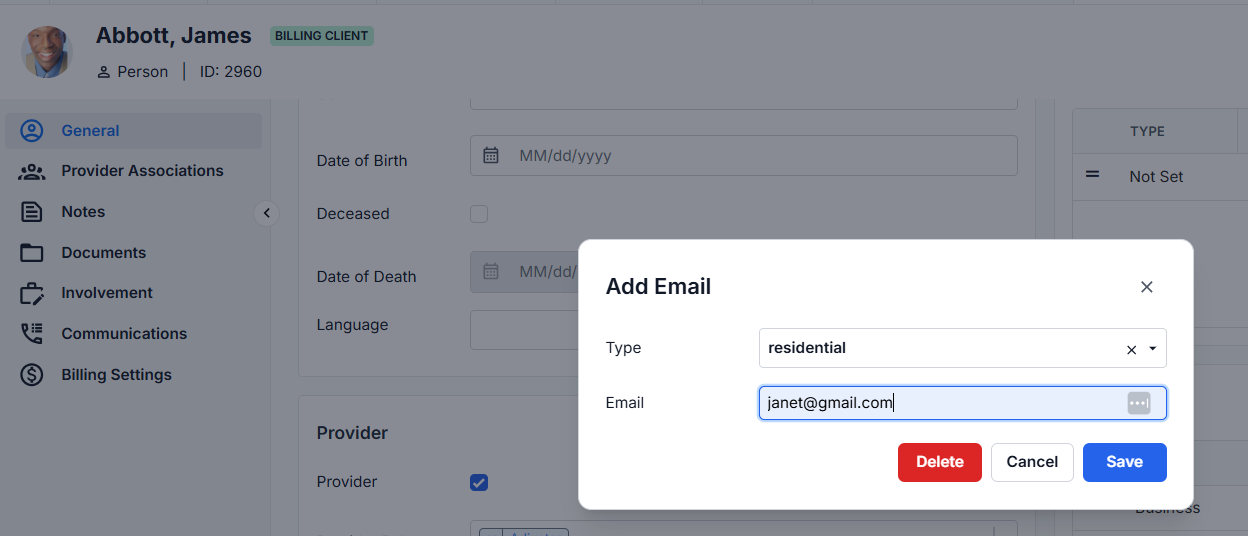


  • Open a contact and add or edit an email address.
  • Click the Email Type dropdown.
    • Default options PersonalBusiness, and Other remain available and are not required.
    • Type a custom label (up to 32 characters) in the filter row at the top of the dropdown.
    • Select the Add this custom value option to create the custom type.
  • Save the email — the custom type is stored with the record and appears in the Type column.
  • Existing email records with default types are unaffected.
  • Custom email types are reflected across contact views and are included in contact exports/reports.


adding_a_custom_email_type_on_a_contact.png

Adding a custom Email Type on a contact — the dropdown accepts free-text values like residential in addition to the defaults.


Adding a Custom Email Type from the Party Tab or Provider Card
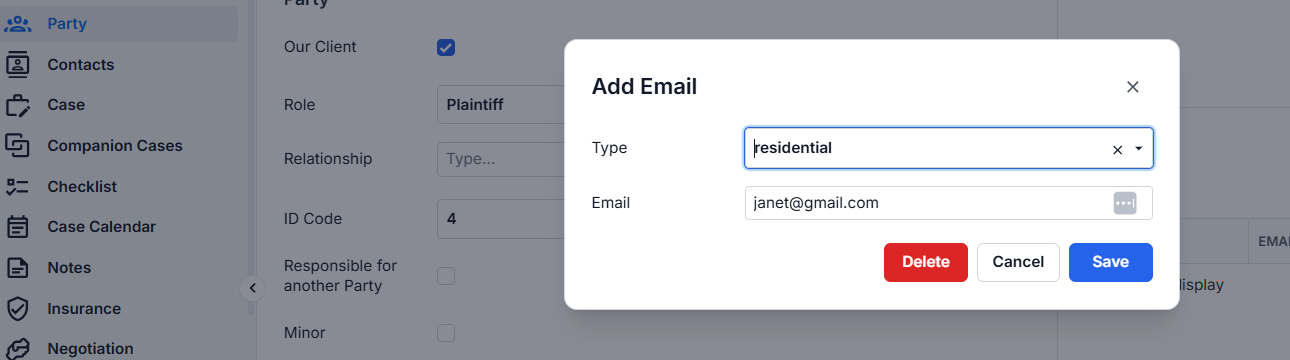
  • Open a case and navigate to the Party Tab or Provider Card.
  • Add or edit an email address.
  • Click the Email Type dropdown.
    • Default options PersonalBusiness, and Other remain available.
    • Type a custom label (up to 32 characters) and select Add this custom value to create the custom type.
  • Save the email — the custom type is stored with the record and appears in the Type column.


adding_custom_email_type_from_case_party_tab.png

Adding a custom Email Type from a case Party Tab follows the same workflow as on a contact. The same affordance is available on the Provider Card.


Scope of Custom Email Types

  • Custom email types are contact-scoped — a custom type created on one contact does not appear in the Email Type dropdown for any other contact.
  • The Party Tab and Provider Card pull from the underlying contact record, so a custom type stays with that contact wherever it appears.


Default Email Type in Advanced Search

  • Custom email type values are available in Advanced Search as both a column and a filter.
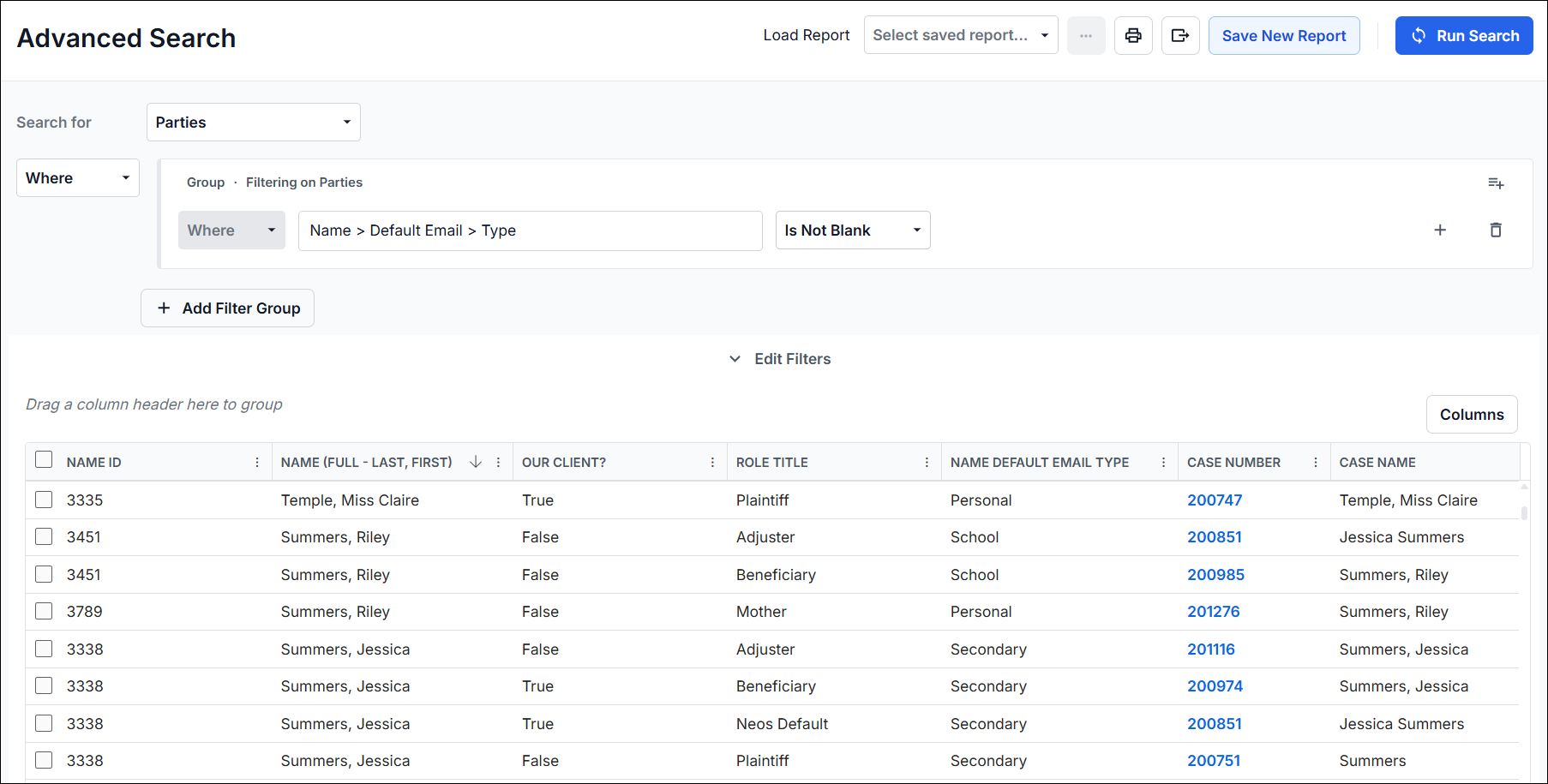
  • Open the column chooser in Advanced Search and add Default Email Type to display the email type — including any custom values — on returned records.
  • Open the filter criteria and select Default Email Type to filter on default and custom email type values.


advanced_search_for_parties_filtered_on_default_email_type.png

Advanced Search for Parties filtered on Default Email Type — the column shows each party's email type (Personal, School, Secondary, and other custom values) alongside the standard columns.

Register for the New in Neos webinar on May 28, 2026, 12 PM ET

Hosted by Bryan Billig, VP of Customer Education

Bryan will demo all the amazing new features being released this month in real time, cracking jokes along the way.

SHARE

Related to this article

New in Neos, May 2026

Legal Tech

NeosAI now auto-assigns SharePoint imports. See what's new in the May Neos release for law firms, including chat upgrades and notification controls.

New in Neos March

Legal Tech

Check out all the innovative new features and enhancements coming out with March's brand new release!

new in neos feb

Legal Tech

Check out all the innovative new features and enhancements coming out with February's brand new release!

Schedule a Neos demo

Manage your daily operations in less time, so you can spend more time focusing on your clients. See how it's possible.